> ## Documentation Index
> Fetch the complete documentation index at: https://resend.com/docs/llms.txt
> Use this file to discover all available pages before exploring further.
# Compose and send with the Broadcast editor
> Learn how to write and send your Broadcasts in the Dashboard editor
Resend's no-code Broadcast editor is built into the Dashboard to allow anyone on your team to create and send your bulk marketing emails.
To create a Broadcast from your application instead, you can [send Broadcasts
with the Broadcasts API
instead](/docs/dashboard/broadcasts/send-broadcast-with-api).
## Quickstart
To create and send a Broadcast using the no-code editor:
Choose any username at your [verified domain](/docs/dashboard/domains/introduction) to send your Broadcast from.
We suggest you choose a `from` name and address that describes the purpose of the email, for example:
* `My Company Name `
* `My Newsletter `.
Choose a [segment of your contacts](/docs/dashboard/segments/introduction) to receive the email.
Resend's Broadcast editor allows you to specify optional fields such as a different Reply-to address, a [topic](/docs/dashboard/topics/introduction), preview text for email clients, and a scheduled time to send.
Use `/` commands in the Broadcast editor for UI elements such as headings, lists, and images. You can also [compose your body text in Markdown](#markdown-support).
When you select an element of your Broadcast, such as text, images, or the entire page, contextual styling menu options show in the page sidebar. [Choose colors, sizes, layouts, and more](#custom-styling) or add your own global CSS styles directly in the editor.
Use the [Resend unsubscribe footer](#broadcast-unsubscribe-link) to allow your contacts to indicate they no longer want to receive your marketing emails.
Click `Test email` and add one or more email addresses to receive your test email and preview how your Broadcast will look in your own email. If applicable, you can add test data for contact properties used in the Broadcast when sending a test email.
Click **Review** to prompt Resend's review feature, which checks for for any errors or concerns with your Broadcast and helps you catch common mistakes before sending.
You may be forced to address some issues before you are allowed to send your email.
When there are no errors, the "Slide to send" element will activate. Slide the arrow to confirm that you are ready to send immediately, or at the configured scheduled time.
Alternatively, exit the editor to leave your Broadcast saved as a draft. It is automatically saved as you compose.
## Markdown Support
You can also write your emails using Markdown headings, lists, italic, bold, links, and quotes.
If you copy and paste content from other rich or plain text applications, the editor maintains formatting consistency.
## Custom Styling
You can customize the look and feel of your email by changing **global styles** such as the background color, link color, and container size, allowing you to create emails aligned with your brand identity.
To do this, click on **Styles** at the top left of the Broadcast editor. You can edit specific images or lines of text by selecting or highlighting them prior to clicking on **Styles**.
You can also edit individual styles for each component, including the font size, font weight, letter spacing, line height, and text alignment. You can also set custom properties for each component, such as image alt, button links, and social links.
The editor additionally includes a built-in AI editor that can style and edit
your content, or `@` mention other Broadcasts for design or content inspiration.
## Personalize your content
When creating Broadcasts, you can include dynamic audience data to personalize the email content.
Add placeholders for your [contact properties](/docs/dashboard/audiences/properties) using the following notation:
* `{{{contact.first_name|fallback}}}`
* `{{{contact.last_name|fallback}}}`
* `{{{contact.email}}}`
## Broadcast unsubscribe link
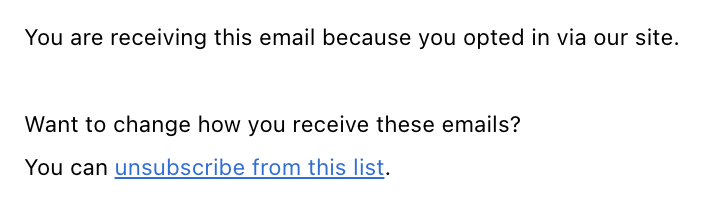
Resend generates a unique link for each recipient and each Broadcast. Use `{{{RESEND_UNSUBSCRIBE_URL}}}` as the link target in your footer to send readers to your unsubscribe page.
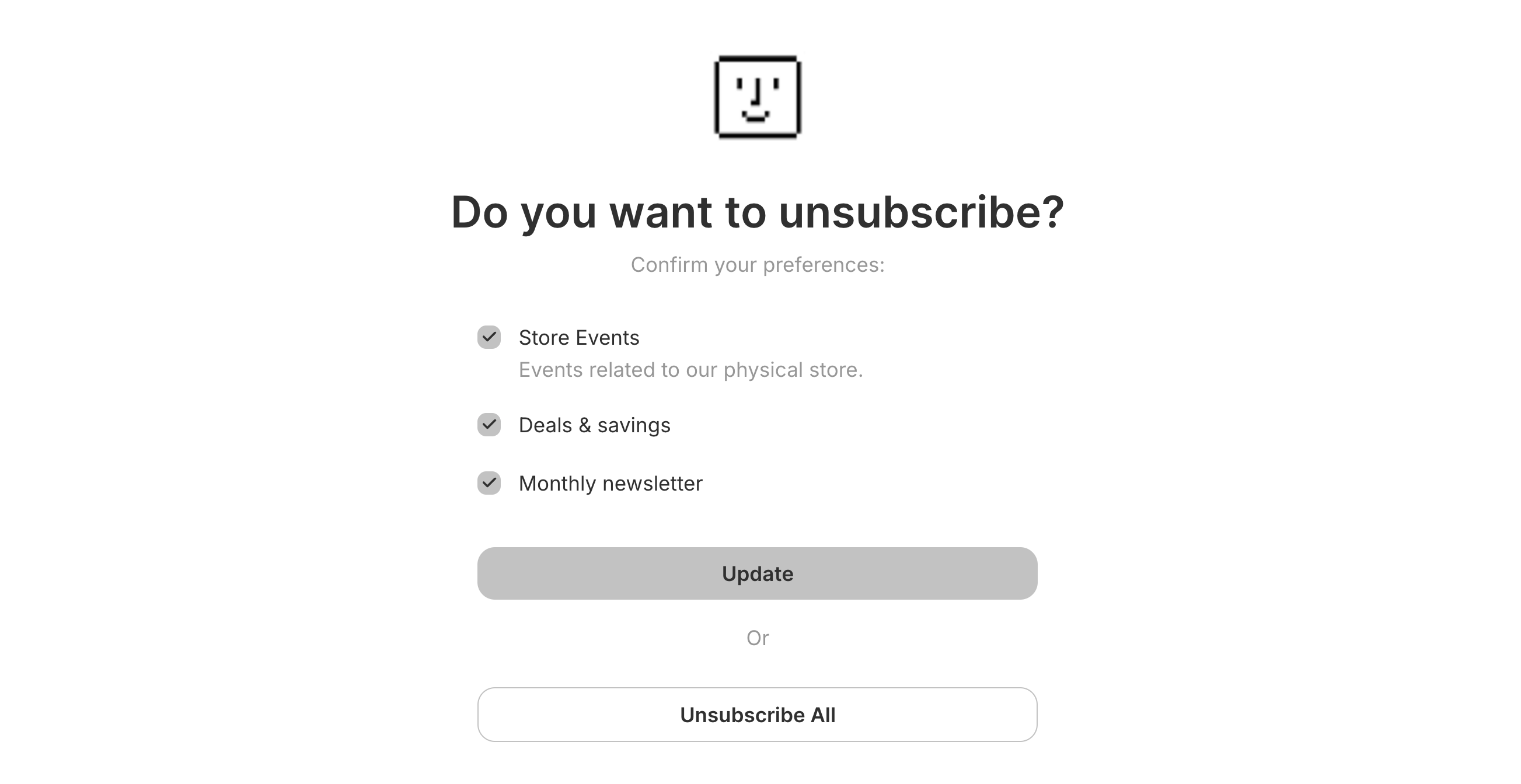
 When a contact clicks this link, they will be presented with a preference page where they can update their subscription preferences [per topic](/docs/dashboard/topics/introduction) or unsubscribe from all of your emails.
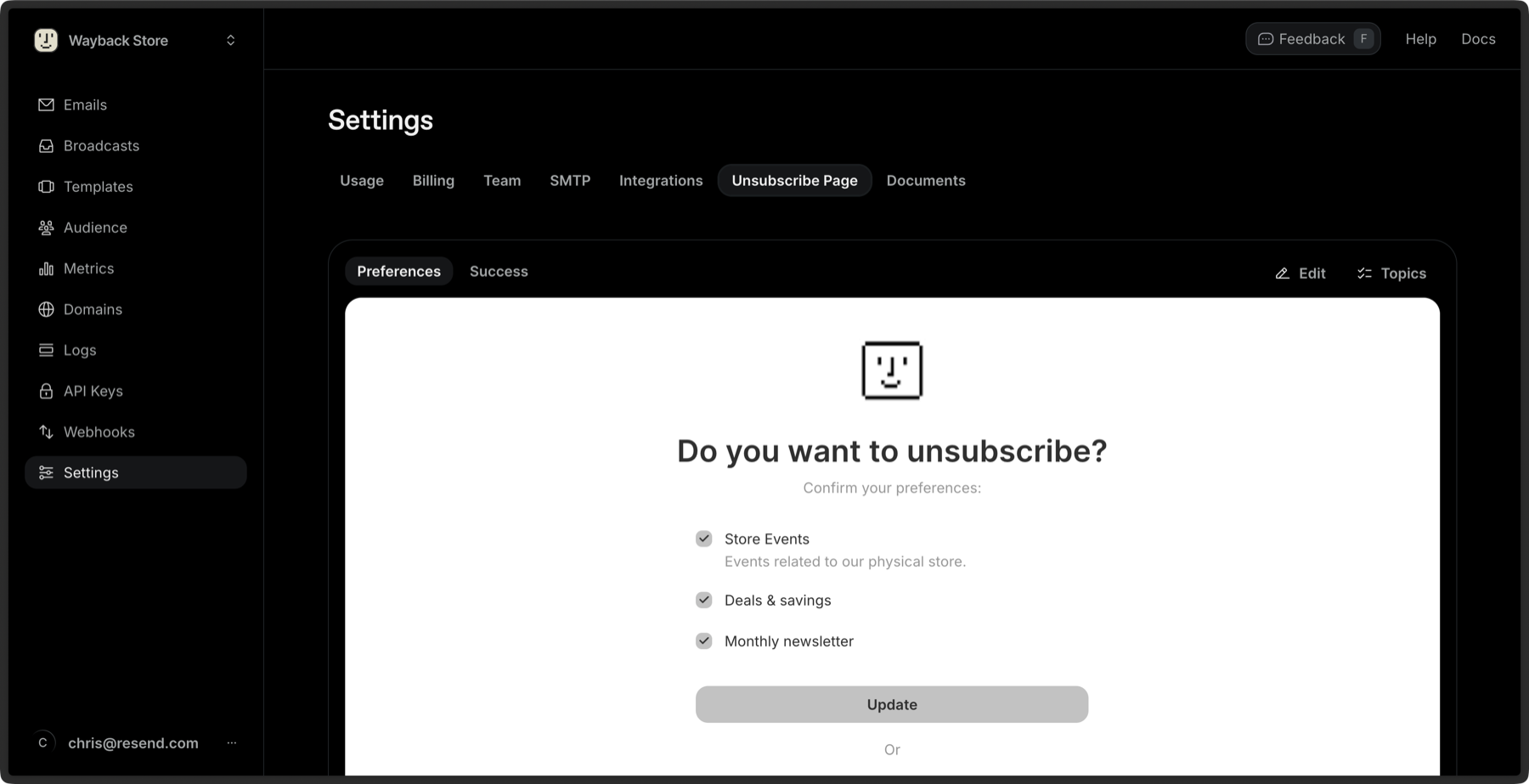
 You can [customize your unsubscribe page with your branding](/docs/dashboard/settings/unsubscribe-page) from your team settings.
 ## Testing & Sending
Once you're finished writing your email, preview it in your personal inbox or send it to your team for feedback.
To do this, click on **Test Email** on the top right of your screen. Enter in the email address you'd like to send your email to, and then click on **Send Test Email** to complete.
Once you're ready to send your email to your Audience, click on **Send**, and slide to confirm.
Test emails do not include any custom Reply-To address. This behavior is
limited to test mode and does not affect actual email sends.
## Cancel a Broadcast
You can [cancel a Broadcast](/docs/knowledge-base/how-do-i-cancel-a-broadcast) while it is still sending by clicking on the Broadcast's **Cancel** button in the Dashboard. Canceling stops the send and cancels all queued deliveries, so no further emails go out.
This only stops delivery of emails that have not yet been sent. Emails that have already been delivered cannot be recalled.
## Testing & Sending
Once you're finished writing your email, preview it in your personal inbox or send it to your team for feedback.
To do this, click on **Test Email** on the top right of your screen. Enter in the email address you'd like to send your email to, and then click on **Send Test Email** to complete.
Once you're ready to send your email to your Audience, click on **Send**, and slide to confirm.
Test emails do not include any custom Reply-To address. This behavior is
limited to test mode and does not affect actual email sends.
## Cancel a Broadcast
You can [cancel a Broadcast](/docs/knowledge-base/how-do-i-cancel-a-broadcast) while it is still sending by clicking on the Broadcast's **Cancel** button in the Dashboard. Canceling stops the send and cancels all queued deliveries, so no further emails go out.
This only stops delivery of emails that have not yet been sent. Emails that have already been delivered cannot be recalled.